 Screenshot Maker
Brooks Marquez · E-commerce · 6 min read · 2026-03-15 · Updated 2026-10-19
E-commerce Dashboard Screenshot Checklist for Ads and Landing Pages
An e-commerce ad often needs a picture of the store admin, not a picture of the product on a white background. The admin is where orders, revenue, and payouts sit. This checklist is for that screenshot: a store or marketplace dashboard you will place in a paid social ad or on a landing page.
The URL of this guide stays the same. The screen it refers to is a dashboard, because that is the template people actually export for this job. Start with the free Digital Products Store, or read the layout notes for an online store dashboard and an online marketplace dashboard.

The eight checks before you export
Go through these in order. A failed check is cheaper to fix in the editor than in a rejected ad.
- Locale formatting. Use the currency symbol, decimal mark, and date order your store uses. A US landing page with
1.234,56 €and a European page with$1,234.56both look like a paste error. Pick one locale and keep it on every card in the campaign. - Mobile legibility. Read the headline total at the width of a phone feed, about 320 CSS pixels. If you have to zoom, the type is too small or the dashboard is showing too much. Crop to the number that matters.
- Totals that agree. If the dashboard lists orders, the sum of the visible order amounts should not exceed the revenue total unless you have labelled the list as "recent" and the total as "all time." Say which window each number uses.
- Dates in one range. Order dates, the chart range, and the "updated" line belong to the same period. A March order list under a chart titled "Last 7 days" in October is unfinished.
- A neutral store name. Use your brand, or an obvious sample name such as "Northwind Supply." Do not use a real competitor's name, and do not use a real customer's store if you do not have permission.
- No real customer names. Replace buyer names, emails, and addresses with clearly generic ones, or remove the column. An ad is a public place. A real buyer's name does not belong in it.
- Light and dark if you will test both. Export each on purpose. Do not rely on a dark ad background to rescue a light screenshot with gray text.
- The ad-platform size. Build the crop for the placement in the next section before you animate or add a headline on top. Leave the metric out of the outer 10% so a platform overlay does not cover it.
A sale badge, if you add one, should state the offer: "20% off" or "$15 off," not "HUGE SALE" with no number. If the offer is not real, do not put it on the image.
Ad sizes by placement
These are the creative sizes store ads commonly use. Confirm the current spec in the ad account before you spend, because placements change.
| Placement | Common size | What to show |
|---|---|---|
| Meta feed, square | 1080×1080 | One total and the store name. A full dashboard shrunk to a square is muddy. |
| Meta feed, portrait | 1080×1350 | The total in the upper half. The lower third is where the caption and buttons compete. |
| Stories and Reels | 1080×1920 | A tall crop of the same UI, with padding at the top and bottom for the interface chrome. |
| Landing hero | 1600px wide or more | The wider dashboard is fine here. People can look longer. |
| Display, landscape | 1200×628 | Treat it like a share card. One number, large type. |
Export the PNG from the template at full size, then crop. Enlarging a small file to 1080 pixels makes the type soft, and soft type fails the mobile check.
Two examples
A digital-products landing page. The hero uses the Digital Products Store screen: store name, a revenue total marked "Sample data," and three generic orders. The caption is "Preview of the seller dashboard." The ad does not say "our sellers made this yesterday."
A marketplace feature section. The marketplace dashboard shows orders and a fee line that uses the same currency. GMV and the platform's own revenue are labelled separately, so a reader cannot add them into one inflated total. The store dashboard is the closer match when you only have one shop.
Browse the rest of the dashboard templates if neither layout matches the admin you are describing. Do not force a payments screen into a product story it does not tell.
FAQ
Should the screenshot show my real sales?
On your own site, a real export of your own admin is fine if you are comfortable publishing those numbers. In an ad, a sample dashboard must be labelled as a preview. Do not imply the sample total is a result a buyer will get.
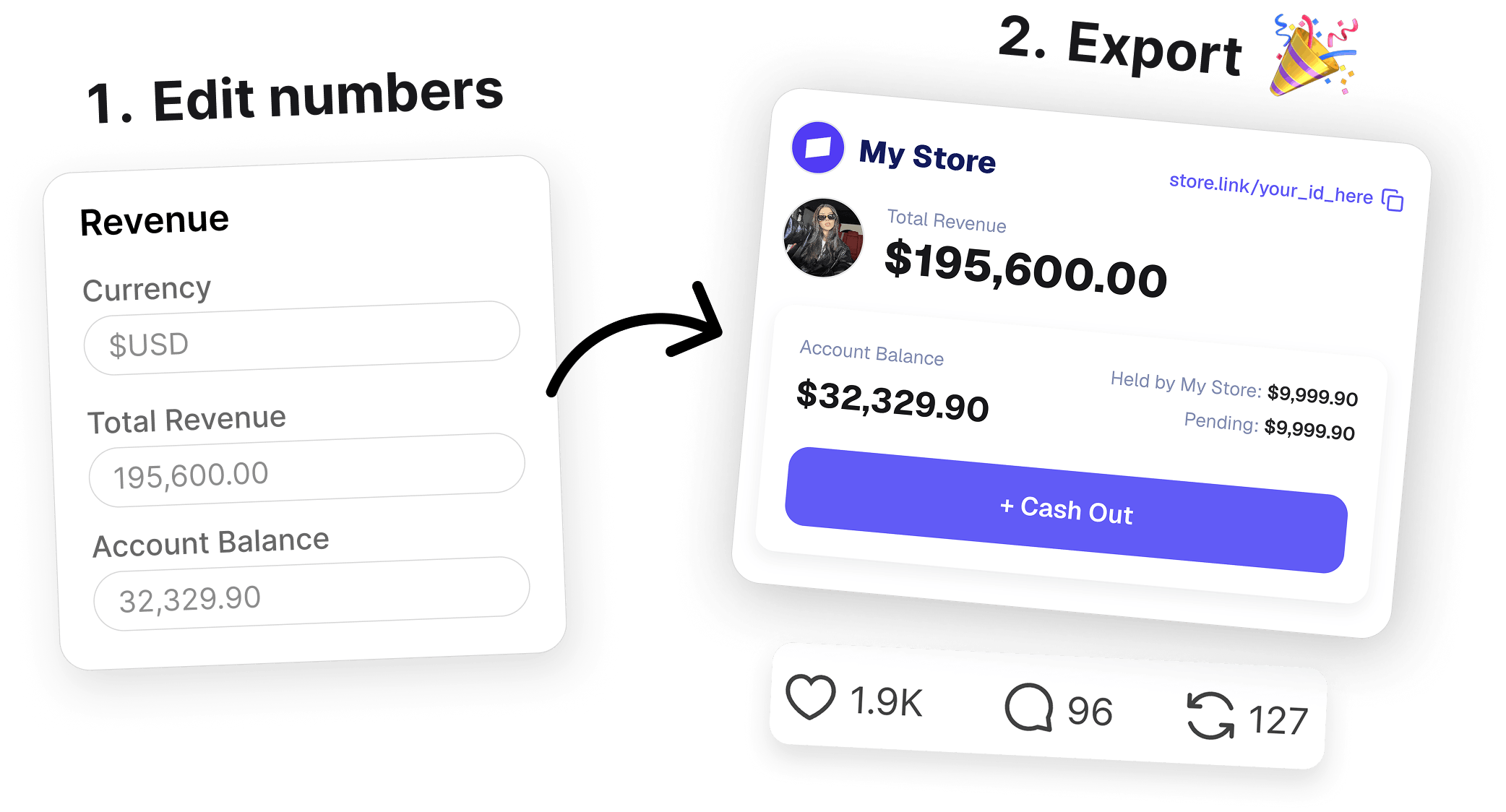
Create a screenshot to get more engagement.
Pick a template, edit the numbers, and export.
Start FreeWhat if the orders in the template are not my products?
Change the product names to yours, or to obvious samples ("Starter bundle"). Leave the placeholder names and the screenshot stops being about your store.
Create a screenshot to get more engagement.
Pick a template, edit the numbers, and export.
Start FreeDo I need both light and dark?
Only if you will run both. Many feeds are mixed. Export the version that matches the background of the ad. A second variant is worth making when you have a test planned, not by default.
Can I add a customer review on top of the dashboard?
Only if the review is real and you can show it. A dashboard mockup plus a sentence you wrote in quotation marks is two claims, and the second one is an endorsement. Keep the dashboard as a product preview.
Export the free dashboard
Open the Digital Products Store editor, run the eight checks, and download the PNG. Put "Sample data" in the alt text before the file goes into an ad.